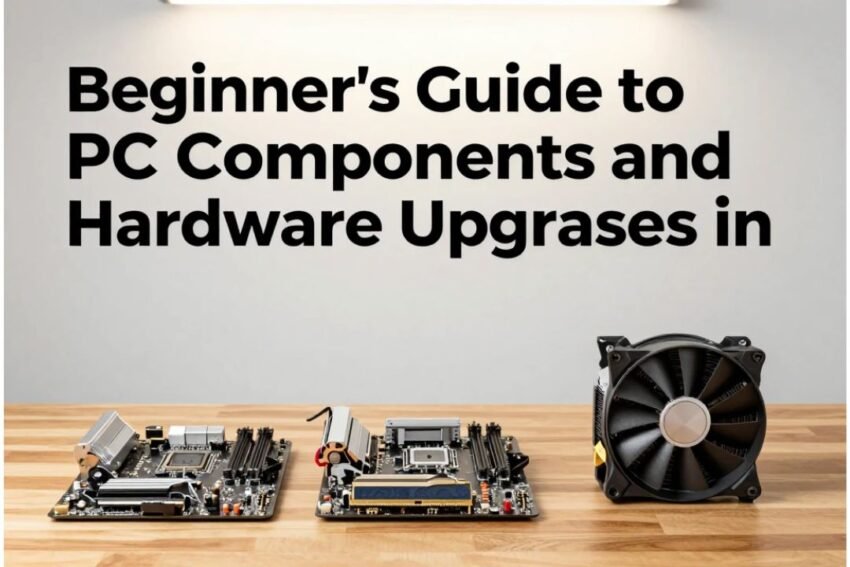
Building, upgrading, or understanding your PC can feel overwhelming — especially if you’re new to hardware. From choosing the right processor and memory to knowing when an upgrade is worth it, this beginner‑friendly guide explains all essential PC components, what they do, and how to upgrade them for better performance in 2026. By the end, you’ll feel confident in making smart hardware decisions whether you’re gaming, creating content, or boosting everyday performance.
🧠 Why Understanding PC Components Matters
Every PC is a system of parts working together. Knowing what each component does helps you:
- Diagnose slow performance
- Decide which parts to upgrade first
- Spend your money where it matters most
- Build a system that’s balanced and efficient
🧱 1. Central Processing Unit (CPU): The Computer’s Brain
What It Is
The CPU handles instructions and computations — essentially acting as your PC’s brain. It affects everything from boot time to application responsiveness.
How It Works
The CPU processes data, executes calculations, and interacts with memory and storage. More cores and higher clock speeds allow more tasks simultaneously.
Tips for Beginners
- For general use, a mid‑range CPU is sufficient.
- For gaming, creative work, or multitasking, more cores and threads help.
- Popular brands: Intel and AMD.
When to Upgrade
- Slow responsiveness
- Unable to handle multitasking
- Bottlenecks in editing, rendering, or gaming
Upgrade Example
- Intel Core i5 → Intel Core i7
- AMD Ryzen 5 → AMD Ryzen 7
CPU matters most when your applications need heavy computation.
💾 2. Random Access Memory (RAM): Your PC’s Short‑Term Memory
What It Is
RAM temporarily stores data that your PC uses actively. More RAM means your computer can keep more apps and files “ready to go” without slowing down.
How Much You Need (2026)
- 8 GB: Minimum for basic tasks
- 16 GB: Ideal for most users
- 32 GB+: Heavy multitasking, video editing, creators
RAM Upgrade Tips
- Check if your motherboard supports more memory
- Match speed/latency for best performance
- Dual‑channel is faster than single‑channel
When to Upgrade
- Frequent freezing with many tabs open
- Slow performance during editing or gaming
- Your system uses a lot of virtual memory
RAM upgrades are one of the most cost‑effective performance improvements.
💽 3. Storage: SSD vs HDD
What It Is
Storage holds your files, programs, and operating system.
HDD (Hard Disk Drive)
- Cheaper
- Slower performance
- Mechanical, older technology
SSD (Solid State Drive)
- Fast read/write speeds
- Improves boot times and apps loading
- More expensive per gigabyte
Best Beginner Combo
- SSD for OS & apps
- Optional HDD for large media storage
Upgrade Tips
- Clone old drive to SSD before installation
- Use NVMe SSD if supported for fastest performance
🎮 4. Graphics Processing Unit (GPU): Visual Performance Engine
What It Is
The GPU renders graphics for games, videos, and 3D applications.
When You Need a Strong GPU
- Gaming
- Video editing & rendering
- Graphic design
- AI‑accelerated apps
Discrete vs Integrated GPU
- Integrated GPU: Built into CPU — suitable for basic use.
- Discrete GPU: Dedicated card — much more powerful.
Popular Choices
- NVIDIA GeForce RTX series
- AMD Radeon RX series
Upgrade Tips
- Ensure PSU (power supply unit) can support the new GPU
- Check case size compatibility
🧠 5. Motherboard: The Backbone of Your PC
What It Is
The motherboard connects all components — CPU, RAM, storage, GPU, and peripherals.
Key Selection Factors
- Form factor: ATX, Micro‑ATX, Mini‑ITX
- CPU socket: Must match your CPU
- Expansion slots & ports: For future upgrades
Upgrade Considerations
A motherboard upgrade may be required when:
- You change CPU brands or generations
- You need more RAM slots or up‑to‑date connectivity
Motherboards aren’t upgraded often — but choosing the right one is critical when building a new PC.
🔌 6. Power Supply Unit (PSU): Your PC’s Power Source
What It Is
The PSU delivers stable power to every component.
What to Look For
- Wattage: Enough to support CPU + GPU + peripherals
- Efficiency rating: Look for 80+ Bronze/Gold
- Modular cables: Cleaner cable management
Upgrade Tips
When installing a power hungry GPU, ensure your PSU is rated for it. A low‑quality PSU can limit performance and build lifespan.
🧊 7. Cooling: Keeping Temperatures Under Control
Why It Matters
Heat reduces performance. Proper cooling ensures your system runs at full potential without throttling.
Cooling Options
- Air Cooling: Fans and heatsinks
- AIO Liquid Cooling: Efficient and quieter
- Case airflow: Fresh cool air and hot air exhaust
Upgrade Tips
- Replace stock CPU coolers with better aftermarket ones
- Add case fans for improved airflow
🔊 8. Case (Chassis): Form, Function, and Airflow
What It Is
The case holds your system components and affects cooling and expansion.
Tips
- Choose a case with good airflow
- Ensure sufficient GPU clearance
- Plan cabling for easier upgrades
🧩 9. Peripherals: Monitor, Keyboard, and Mouse
Don’t forget these external components:
Monitor
- Resolution: Full HD → QHD → 4K
- Refresh rate: 60 Hz → 144 Hz+ for gaming
Keyboard & Mouse
- Ergonomics matter for productivity and gaming
- Mechanical keyboards and high‑DPI mice improve responsiveness
🔁 Upgrading Your PC: Step‑by‑Step Checklist
Upgrading isn’t as scary as it seems — follow this guide:
🧠 Step 1: Identify Slow Areas
Use tools like Task Manager (Windows) or Activity Monitor (macOS) to find bottlenecks.
💡 Step 2: Decide Upgrade Priority
Order of impact (typical):
- SSD
- RAM
- GPU (for gaming/creative users)
- CPU
- Cooling
💾 Step 3: Check Compatibility
Verify motherboard socket, RAM speed support, PSU wattage, and case size.
🛠️ Step 4: Backup Data
Before upgrades, always back up your files.
🔌 Step 5: Install and Update
Install new parts, then update drivers and BIOS/UEFI.
🛠️ Tools You May Need for Upgrading
- Screwdrivers (magnetic tip recommended)
- Thermal paste (for CPU cooler installation)
- Anti‑static wrist strap
- Cable ties for clean management
🧠 Common Mistakes to Avoid
❌ Upgrading only one component without checking for bottlenecks
❌ Ignoring PSU requirements
❌ Forgetting to check motherboard compatibility
❌ Not backing up data before upgrades
❌ Overlooking BIOS updates
🎮 When to Consider a Full System Upgrade
Even with component upgrades, sometimes a new build makes sense if:
- Your CPU is several generations old
- You need high performance for modern gaming or content creation
- Your motherboard limits further upgrades
- You want better features like PCIe 5.0, DDR5 RAM, or AI‑accelerated silicon
📈 Performance Boost Expectations
| Upgrade | Typical Impact |
|---|---|
| SSD | ⭐⭐⭐⭐ Faster boot & load times |
| RAM | ⭐⭐⭐ Better multitasking |
| GPU | ⭐⭐⭐⭐ High FPS & creative performance |
| CPU | ⭐⭐⭐ Balanced overall improvement |
| Cooling | ⭐⭐ Stabilized performance under load |
🔮 Future Trends in PC Hardware (2026+)
- AI‑Accelerated Silicon: Enhanced AI compute capabilities directly on CPUs/GPUs
- DDR5 Memory: Faster, more efficient memory replacing DDR4
- PCIe 5.0 & Beyond: Higher bandwidth for next‑gen GPUs and SSDs
- Hybrid CPU Architectures: Big + small core designs for balanced performance
- AI‑Assisted Optimization Tools: Auto‑tuned performance profiles
📌 Final Thoughts
Understanding PC components and upgrades gives you the confidence to optimize your system — whether you’re building your first PC or refreshing an existing one.
Key Takeaways:
✔ Know your system’s bottlenecks
✔ Start with upgrades that give the biggest impact
✔ Check compatibility before you buy
✔ Keep drivers and firmware updated
✔ Don’t ignore cooling and power requirements
With these fundamentals, you’re ready to build, upgrade, and enjoy a faster, more efficient PC in 2026.